
How to Update FF Beta to the Latest Version [Easy Guide 2026]
![How to Update FF Beta to the Latest Version [Easy Guide 2026]](https://ffbetapro.com/wp-content/uploads/2026/07/update-ff-beta-guide.webp)
Keeping your FF Beta Testing app updated is important if you want to enjoy the newest OB features and improved compatibility with the latest Free Fire and Free Fire Max updates. Every new version comes with exciting surprises and fixes old bugs to run smoothly on all types of devices.
In this article, you will learn how to update FF Beta Testing to the new version safely. Whether you are a new or existing user, these simple steps will help you update without any confusion.
What is FF Beta Testing?
FF Beta is the trusted third-party testing app that allows Free Fire or Free Fire Max players to test new OB content before its official release in all Garena regions. That’s why it became widely popular worldwide. Many players use it to explore new changes in the game, get unlimited free rewards without a top-up, and play matches on new maps.
But the best part of FF Beta Testing that makes it more amazing than the Free Fire Advance Server is that it doesn’t require any activation code or registration process to access this private server.
Why Should You Update FF Beta Testing?
As we know, Garena Free Fire releases new OB updates every 45 or 60 days to improve the game, add new premium items, maps, events, and much more that you can explore early using FF Beta Testing. That’s why the developers also update the app to a new version so it works smoothly with the latest version of the game.
That is why updating FF Beta to the latest version becomes more important for every player who is interested in this. Also, here are some of the biggest benefits of it:
- Explore new bundles, gloo walls, vehicles, fist skins, and more.
- It allows players to test new characters and weapons on the battleground.
- Better compatibility with the newest Free Fire update.
- Faster loading speed.
- Reduced crashes and freezing issues.
Also, using an older version of FF Beta can cause issues while playing, and you also won’t get new features.
How to Update FF Beta Testing to the Latest Version
Updating FF Beta Testing to the new version is simple, and you can complete it by following these 5 steps only:
Step 1: Backup Your Settings (Optional)
As we know, FF Beta is only for testing purposes. That’s why progress doesn’t save in this game, and you also can’t carry it over to other accounts. So, taking a backup is not beneficial. But if you want to take one, then you can save it in your File Manager.
Step 2: Download the Latest Version
Now, you have to download the latest version from the official website, where you will get the download link at the start of the homepage.
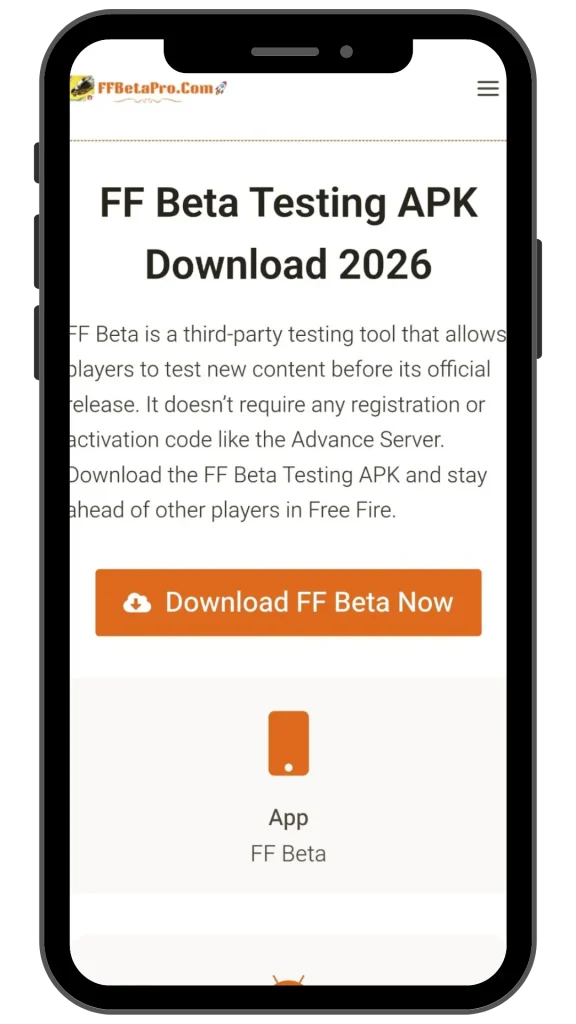
The files are already tested and verified on the VirusTotal website, and only after that have we added them here for downloading.
Once the download starts, let it complete successfully.
Step 3: Enable Unknown Sources
If you haven’t enabled installation from “Unknown sources,” then follow the guide below:
Go to your mobile Settings > Privacy > Special Permissions > Choose a browser like Chrome or any other that you have installed > Enable the “Allow from this source” option.
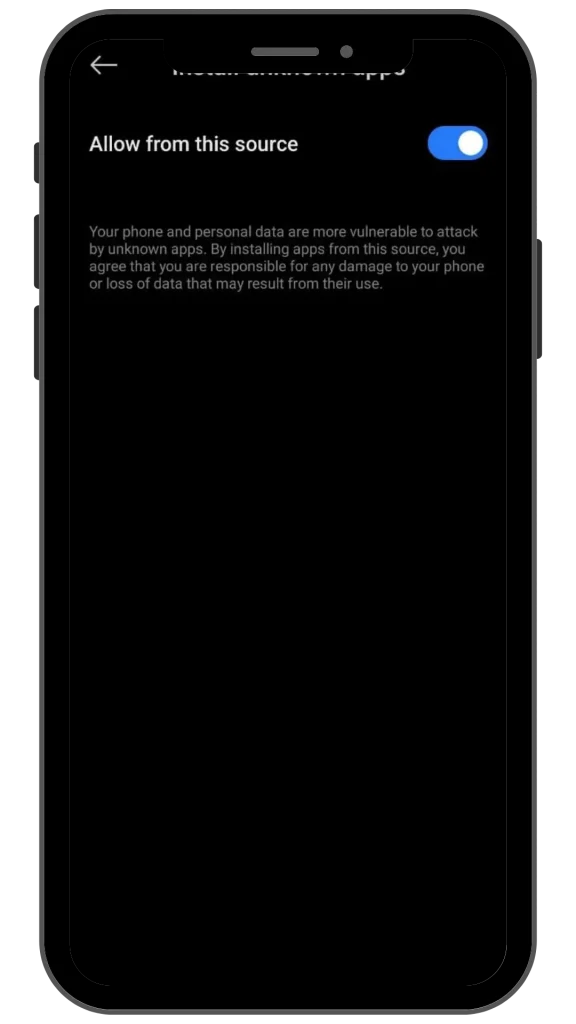
Skip this step if permission has already been granted.
Step 4: Install the New APK
Now, you can install the new version of the FF Beta Testing APK on your mobile.
Make sure that it is installed successfully.
Step 5: Open FF Beta Testing
Once installed, open the app and start exploring new OB content and new changes in the game by playing battle royale matches early.
How to Check if the Update Was Successful
If you want to check the APK to know whether it’s an older or newer version, then you can confirm it by checking the points below:
- Long-tap on the app and click on “App Info” to check its version, or you can also do it from Settings > App Manager.
- Open the FF Beta game and check whether newly added bundles, premium skins & items, and more are available in your vault. If available, then it’s the new version.
If everything works normally, your update was successful.
Common Update Problems and Their Solutions
Sometimes Free Fire or Free Fire Max players can face problems while using the FF Beta Testing app. Let’s check out the common issues and their solutions.
Installation Failed
If the installation is failing again and again, then uninstall the old version of the app and install the new version only. Also, make sure that you have enough storage on your mobile. After that, this problem won’t happen again.
App Keeps Crashing
To fix the app crashing problem, simply restart your mobile device and clear the cache from the App Manager. After that, you can use FF Beta Testing smoothly.
Update Button Not Working
If the update button is not working, make sure that you are connected to a stable internet or Wi-Fi connection. After that, try again to download and install it.
Parse Error
This problem usually occurs when the APK is corrupted or your Android version is too old. If the APK is corrupted, then download the APK again and let it complete successfully. After that, you can install it easily.
If your Android version is too old, then update it from your mobile settings, and then try to install FF Beta.
Tips for Updating FF Beta Testing Safely
To avoid problems during updates:
- Always use the latest official release.
- Keep enough free storage on your device.
- Maintain a stable internet connection.
- Remove damaged APK files before downloading again.
- Restart your phone after updating.
- Keep Android updated for better compatibility.
Is Updating FF Beta Testing Free?
Yes. It is completely free to update. You just need to download the latest version of the FF Beta APK and install it on your mobile.
Can I Update Without Losing My Data?
Usually, yes.
Installing the latest version of Free Fire Beta Testing over the previous one normally keeps your settings and app data. However, it is only for testing purposes, so you should not worry about game progress or settings because they always reset during new OB updates like the FF Advance Server.
Why Is My FF Beta Testing Outdated?
Your app may become outdated because:
- A new Free Fire update has been released.
- The developer has fixed bugs.
- New features have been added.
- Older versions are no longer fully compatible.
That is why you should always update FF Beta Testing to the new version, especially during new Free Fire OB updates, to enjoy new features and stay away from minor bugs.
Conclusion
Updating FF Beta Testing to the new version is one of the best methods to enjoy better performance, improved stability, and new premium content from the new Free Fire OB updates before their release in all Garena regions. That is why more players are showing interest in joining FF Beta and taking advantage of it.
The process only takes a few minutes and helps you avoid common FF issues like crashes, compatibility problems, and missing features. But remember to always download FF Beta Testing from the official website or trusted platforms to get genuine files.